
Bulk-edit rules across many Shopify collections at once
Once you're running a lot of managed collections, editing them one at a time gets old fast. Bulk Actions lets you apply the same rule change to a whole batch at once — add a rule to every collection you pick, remove rules that match a condition, or find-and-replace a rule value across all of them. Pick the collections, choose the action, define the rule, and run it. Here's how.
Don't have Awsm Collections yet? Install it from the Shopify App Store →
1 Open Bulk Actions
From the app's left nav, click Bulk Actions. You get a single page to select collections and apply one change to all of them.
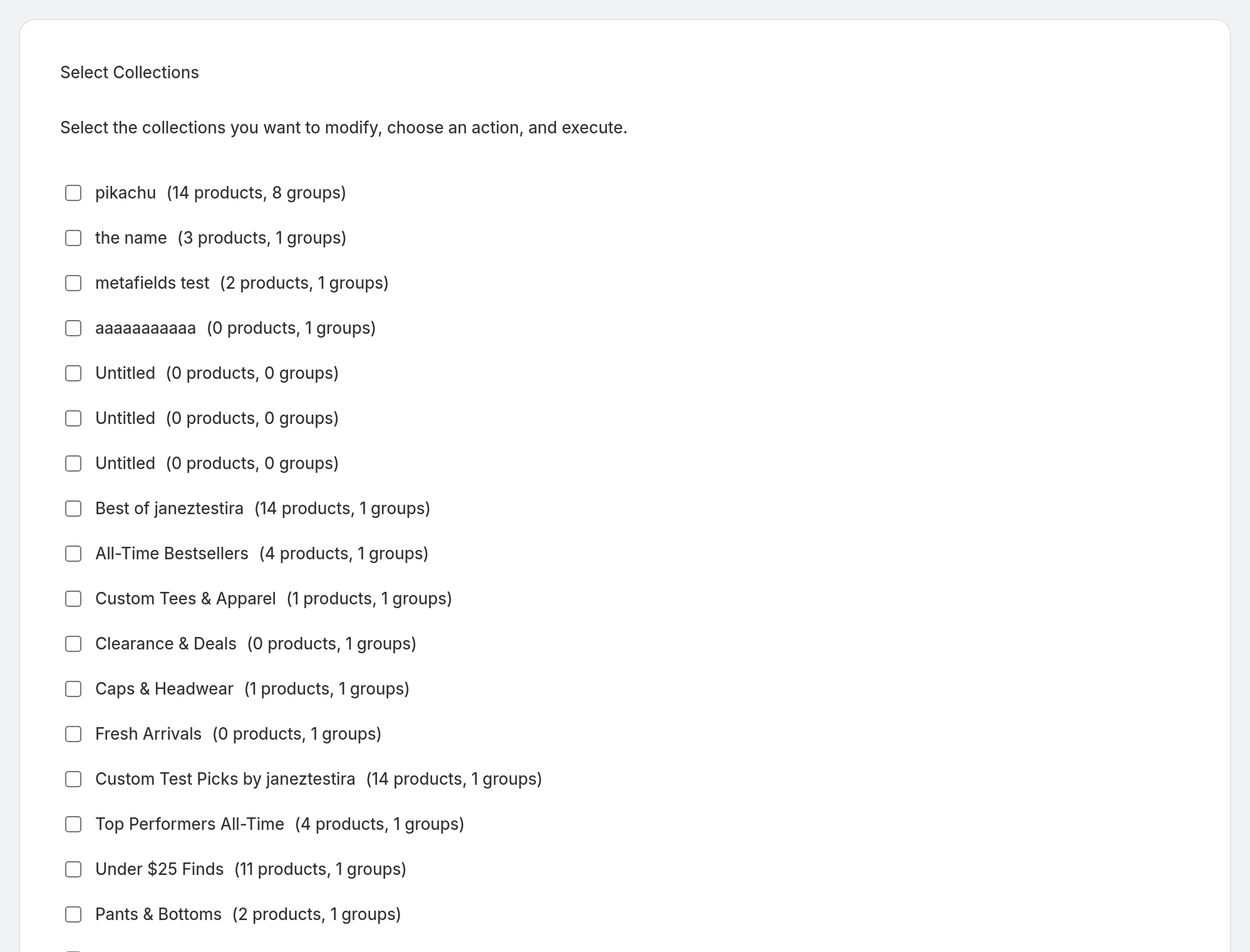
2 Select the collections
Under Select Collections, tick the ones you want to change. Use Select All / Deselect All to move quickly when you're targeting most (or resetting your choice).
3 Choose an action
Pick what to do from the Action type dropdown under Action:
• Add Rule to All Groups — append a new condition to every selected collection.
• Remove Matching Rules — strip out rules that match a condition you specify.
• Replace Rule Value — find a value used in rules and swap it for a new one.

4 Define the rule (or the find-and-replace)
Once you pick an action, the matching fields appear. For add or remove, set the rule under Rule Definition — three plain text fields. Property and Relation take the rules engine's numeric IDs (the same IDs a collection's Export as JSON shows in the editor), and Condition takes the value. For Replace Rule Value, the Replace Value fields appear instead: enter the Find Value and the Replace With value.

5 Run it across every selected collection
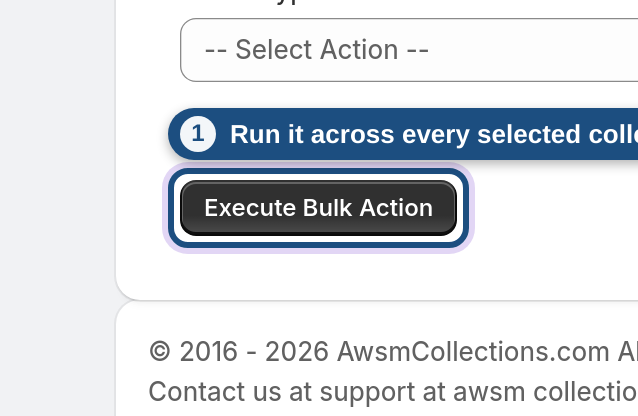
Click Execute Bulk Action to apply the change to every collection you selected. Each one re-syncs on its normal schedule afterwards, so their product lists update to reflect the new rules. Results are reported per collection so you can confirm the change landed.
Frequently asked questions
How do I edit the rules on many Shopify collections at once?
Open Bulk Actions from the left nav, tick the collections to change, choose Add / Remove / Replace under Action, define the rule, and run it — the change is applied to every selected collection in one go.
What bulk changes can I make?
Three: add a rule to all selected collections, remove rules that match a condition, or find-and-replace a value used in existing rules.
Does bulk-editing rules re-sync the collections?
Yes. Changing the rules changes what matches, so each affected collection re-evaluates on its schedule and its product list updates accordingly.
Can I select all my collections at once?
Yes — use Select All to tick every collection in the list, then Deselect All if you want to start over. A single bulk action covers up to 50 collections, so with more than that, run it in batches.
What's the difference between Remove Matching Rules and Replace Rule Value?
Remove strips out rules that match a condition entirely. Replace keeps the rule but swaps one value for another (for example, changing a tag rule's value from "summer" to "spring" across every selected collection).
Is Bulk Actions only for rule changes?
Bulk Actions works on the rules of your managed collections — adding, removing, or replacing conditions in bulk. To change how a single collection sorts or which products are pinned, open that collection in the editor.
Will this touch collections I didn't select?
No. Only the collections you tick are changed; everything else is left exactly as it is.